3DS Emulator PC Settings for Sharp, Smooth Gameplay
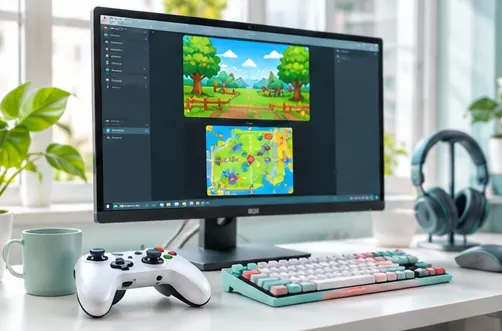
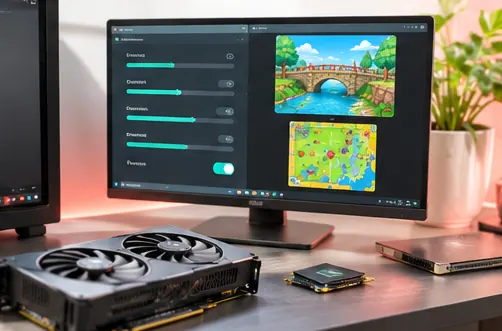
3DS Emulator PC play offers the biggest upgrade over the original handheld: games that ran at a small native resolution can look crisp on a modern monitor, and keyboard or controller input feels responsive. Azahar exposes plenty of settings to get there, and a handful of them make most of the difference.
This walkthrough focuses on the options that matter for everyday players on Windows, macOS and Linux desktops.
Start with a Clean Configuration
Fresh installs come with sensible defaults, so launch a game before changing anything. Note how it runs, then adjust one option at a time. Changing many settings at once makes it hard to see which change helped and which one caused a new problem.
Per-game configuration is worth using for demanding titles. It lets you raise quality for lighter games without slowing heavier ones.
Choosing a Graphics Renderer
Azahar offers OpenGL and Vulkan renderers in builds that include them. Neither is universally better; results depend on your graphics card, drivers and the game.
| Renderer | Strengths | Consider it when |
|---|---|---|
| Vulkan | Often faster on modern GPUs | Your drivers are current and stable |
| OpenGL | Mature and widely compatible | A game shows glitches under Vulkan |
Keep your graphics drivers up to date before testing either renderer. Older drivers are a common source of crashes and visual errors.
Internal Resolution
Internal resolution multiplies the console's native output, which is where PC play shines. A 2x or 3x setting already looks dramatically sharper on a 1080p screen, while higher values suit 1440p and 4K displays on capable GPUs.
Higher resolution increases GPU load. If a game drops below full speed, lower this setting first, since it usually has the largest impact.
Shader Cache and Stutter
Games compile shaders the first time new effects appear, which can cause brief stutters. Release notes for 2125 highlight a disk shader cache, so compiled shaders are saved and reused on later sessions.
- Leave the disk shader cache enabled.
- Expect a few stutters the first time you visit new areas.
- Clear the cache only if a driver update causes visual problems.
Performance Hacks Worth Knowing
Azahar includes a "Disable Right Eye Rendering" option that skips drawing the second stereoscopic view. Coverage of the first release candidate described it as offering a potential performance boost of up to 50 percent in some cases.
CPU JIT and shader JIT are enabled by default where supported. They speed up emulation considerably, so leave them on unless you are diagnosing an accuracy problem.
Screen Layouts on a Monitor
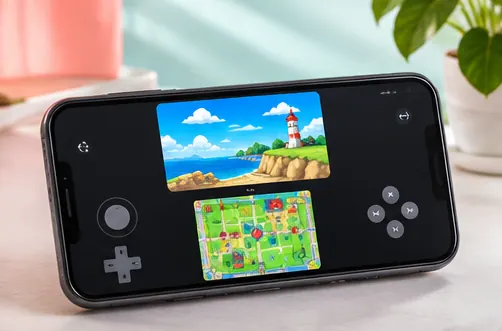
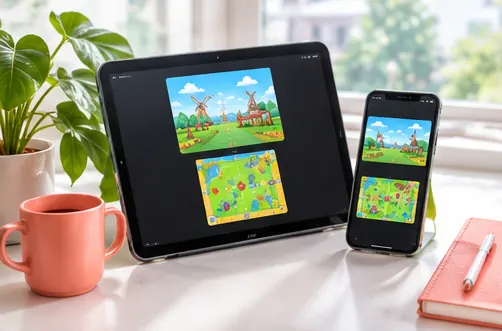
Desktop play gives you flexible ways to show both screens. The default stacked view mirrors the handheld, while side-by-side and large-screen layouts make better use of widescreen monitors.
Picking a layout
Action games often feel best with a large top screen and a smaller bottom screen. Games that rely on the touchscreen benefit from a layout that keeps the lower screen large enough to click accurately with the mouse.
Stereoscopic 3D
The 3D effect can be adjusted or turned off. Release candidate notes for one 2025 release mentioned a stronger 3D effect than the original console allowed, for players with suitable displays.
Controllers, Hotkeys and Save States
Azahar supports modern controllers, so a standard gamepad maps naturally to the handheld's buttons and circle pad. Map your controls once in the input settings and save a profile if you share the PC with others.
Save states let you capture a moment instantly, separate from a game's own save system. Use them as a convenience, but keep regular in-game saves too, since states can break across major emulator updates.
- Assign hotkeys for save and load state.
- Bind a key for swapping screens in touch-heavy games.
- Use fast-forward or turbo for slow sections where available.
Audio Settings
Audio problems such as crackling usually appear when a game runs below full speed, because the emulator cannot feed sound at the expected rate. Fix performance first, then revisit audio options. Recent releases expose audio emulation settings on desktop and Android, letting you choose between accuracy and speed.
Headphones connected over Bluetooth can add noticeable latency. A wired connection or a low-latency wireless headset keeps sound in step with the action.
Recommended Starting Presets
Hardware varies widely, so treat these as starting points rather than fixed rules. Raise or lower resolution based on how each game behaves.
| PC type | Renderer | Internal resolution |
|---|---|---|
| Integrated graphics laptop | Try Vulkan, then OpenGL | Native to 2x |
| Mid-range gaming PC | Vulkan | 3x to 4x |
| High-end gaming PC | Vulkan | 4x and above |
Keep the disk shader cache on for all of them, and lean on per-game profiles for titles that need lighter settings.
Fullscreen and Display Scaling
Fullscreen mode removes window borders and makes the most of your monitor. On high-DPI displays, check your operating system's scaling settings if the interface looks too small or too large. Pair fullscreen with a hotkey for swapping screens, and touch-centred games stay easy to control even when the main view fills the display. Borderless fullscreen can also make switching to other apps quicker.
Frequently Asked Questions
Is Vulkan or OpenGL better for Azahar on PC?
It depends on your GPU and drivers. Try Vulkan first on modern hardware and switch to OpenGL if a game misbehaves.
What internal resolution should I use?
Start at 2x or 3x on a 1080p screen and raise it only if the game stays at full speed.
Why does a game stutter the first time?
Shaders compile when new effects appear. The disk shader cache reduces this on later sessions.
Do save states replace in-game saves?
No. Use both, because save states may not carry over between major releases.
Conclusion
3DS Emulator PC setup with Azahar comes down to a few key choices: the right renderer for your GPU, a resolution your hardware can sustain, and an enabled shader cache. Add per-game profiles for demanding titles and a comfortable screen layout.
Tune gradually and keep drivers current. The result is sharp, smooth play that makes your 3DS library feel new on a big screen.